White and gray IP: how to reach a device behind your ISP's NAT
You have a camera, a NAS or a home server, and you just can't reach it from outside. Most of the time the reason is the same: your ISP handed you a gray address, and a gray address doesn't accept incoming connections. Below is how it differs from a white one, how to tell which type you have, and what to do when you have no white IP: from asking your ISP to getting access around a white IP entirely.
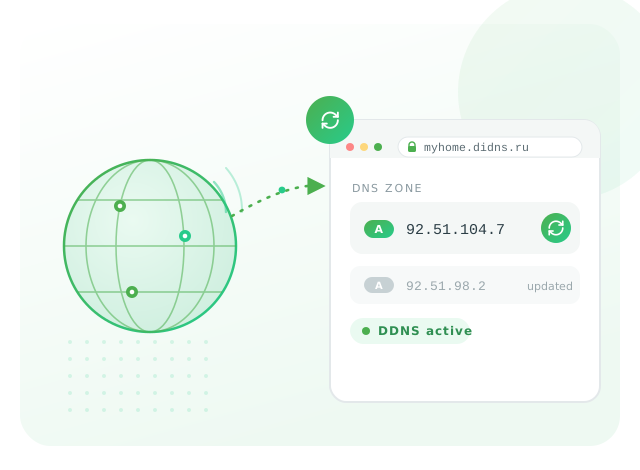
Reaching a home camera, server or NAS by a permanent name is convenient. Whether you can do it directly comes down to the address type your ISP gave you — white or gray.
What's the difference between a white and a gray address
There haven't been enough IPv4 addresses to go around for a long time: the old format is exhausted, and giving every subscriber a personal address is expensive for an ISP. It's cheaper to hide a few hundred clients behind one shared address. That's where the split into white and gray comes from.
A white IP is unique across the whole internet and tied to your connection. It can be reached from outside and lands exactly on you — there are no restrictions on incoming connections.
A gray IP is an address from the ISP's internal network; it doesn't exist on the "wider" internet, and hundreds of neighbours have the same address right now. When you open a website, the ISP puts its own shared white address on the outgoing request and remembers who to return the reply to — that's NAT. An incoming request, though, has no one to be returned to: it arrives at the ISP's shared address, and there is no telling which of the hundreds of subscribers it is meant for. That's why the camera you knock on from work doesn't answer.
| White IP | Gray IP | |
|---|---|---|
| Browsing sites, watching video | Yes | Yes |
| Incoming connection from outside | Yes | No |
| Port forwarding on the router | Works | Useless |
| Camera, NAS, RDP, game server | Reachable directly | Only via an intermediary |
| Who controls the translation | Your router | The ISP's router, out of your reach |
| Usually given | As a paid add-on or on request | By default, especially on mobile |
How to tell which address you have
The check takes a couple of minutes and needs no special software.
- On your phone or computer, open any service that shows your external address — search for "what is my ip". Note the number: that's how the internet sees you.
- Open your router's web interface and find the address on the WAN interface. It's usually on the main status page.
- Compare the two numbers. If they match, your address is white and the rest is just configuration. If the router shows a different address starting with 100.64–100.127, 10., 192.168. or 172.16–172.31, you're behind the ISP's NAT and your address is gray.
The 100.64.0.0/10 range is worth remembering separately: it's reserved for carrier translation, known as CGNAT. On a home router it only shows up when the ISP has put you behind a shared address. How address types work and why they change is covered in detail in the article on dynamic DNS.
A dynamic address isn't the same as a gray one
This is where many people get confused. An ISP may hand out a white address without pinning it down: it changes on reconnect or once a day. That doesn't stop it being white — it's reachable from outside and port forwarding works — it's just not permanent. All it shares with a gray address is being "inconvenient", but a gray one is unreachable altogether, while a changing white one is reachable at its current number.
The same check tells them apart. If the router's WAN matches your external address but keeps changing, it's a dynamic white address, and dynamic DNS hides the changing number behind a permanent name — no need to switch plans. If the WAN is always different from the external address, it's gray, and DDNS is powerless there whatever the TTL. One observation apart, and the fixes are opposite.
Where a gray address comes from
The reason is arithmetic. The world has run out of free IPv4 addresses: to get a new block, an operator joins a multi-year queue and then pays annually for each address. Meanwhile there are more subscribers than addresses, especially at mobile operators, where a single white address serves thousands of connections. CGNAT squares the circle: plenty of clients served, few public addresses spent.
Most people never notice — sites and video don't need a white address. The ones who hit the wall are those who need an incoming connection: owners of cameras, home servers, smart-home gear, anyone with remote access to a work computer. If that's you, here's what to do about it.
Mobile internet
If you get online through a SIM card — a phone as a hotspot, a USB modem, a router with a SIM — a gray address is all but guaranteed. Thousands of subscribers share one of the operator's white addresses, and there is simply nowhere to hand each one a personal public address. Asking for a white IP on an ordinary SIM usually isn't possible: most operators don't offer it to consumers at all, and where they do it's a separate paid option or a corporate plan.
Signs you're behind the operator's CGNAT:
- the address on your device or router is in the 100.64.x.x–100.127.x.x range;
- your external address doesn't match the one on the interface and, on top of that, changes from tower to tower;
- port forwarding and "open ports" in camera and torrent apps produce no result from outside.
The upshot: on mobile internet, of the three options below only proxied access actually works — it needs no white address and doesn't care what NAT you sit behind. A white IP on a SIM is nearly impossible to get, and keeping a permanent VPN tunnel over a mobile link is awkward.
How to get access: three options
There are three ways to reach a device behind a gray IP. They aren't mutually exclusive and suit different budgets and needs; in some cases our service isn't needed, and that's said plainly.
| Option | What it gives | When to pick | Downsides |
|---|---|---|---|
| White IP from the ISP | Direct access, like before | The ISP offers a white address and the price suits you | Paid monthly; not everyone offers it; often impossible on mobile |
| VPN or your own tunnel | Access to the whole home network | You have a second server with a white IP and the will to set it up | Needs an intermediary node; setup on each client |
| Proxied access | A permanent address for the device without a white IP | No white address, or it's expensive, and no time to tinker | Traffic goes through an intermediary |
White IP from the ISP
The most direct option is to call your ISP and ask for an external address (also called a white or static one). At wired operators it's usually a paid service — a small monthly fee, sometimes with a one-off activation charge. Once it's on, everything falls into place: port forwarding on the router makes sense again, and the camera and NAS open directly.
This option is good when the ISP offers it, the price fits, and you want the fewest intermediaries between you and your device. Our service most likely won't be needed here: a white address plus dynamic DNS (if the address changes) is enough.
The catch is that it isn't always available. Many mobile operators don't offer a white address at all, and some home ISPs give it only to businesses or on higher plans. If you hear "we don't offer that", a tunnel and proxying are what's left.
How to order a white IP and what to check
Operators call the service different things: "external IP", "public address", "static IP", "dedicated address". With support it's enough to describe the task in plain words — "I need to reach my home camera from the internet" — and they'll suggest the plan. Three things are worth checking.
- Static or dynamic. A static one is pinned to you and never changes — more convenient but pricier. A dynamic white address is cheaper and works just as well for reaching a device: dynamic DNS hides the changing number. There's no point overpaying for static for the sake of one camera.
- One-off activation or monthly. Some operators charge a fixed fee every month, others a one-off connection charge. Over the long run the one-off works out cheaper.
- Line type. On GPON fibre and at mobile operators a white address is handed out less often — they save addresses harder there. The answer "not technically possible" is usually about the operator's policy rather than physics, and it's final: no amount of persuading will get you the address.
When a white address isn't available or is expensive, a tunnel and proxying close the task — the ISP's side no longer matters to them.
VPN or your own tunnel
Here you don't open the device to the outside; instead you punch a channel out from the inside. The connection always goes from your network to the outer world, and the ISP's NAT doesn't get in the way of outgoing connections, so a gray address stops being an obstacle.
It looks like this: somewhere there's a node with a white address — a rented VPS, the office, a second home with a proper connection — and your router or a separate device keeps a permanent link to it, and through that node you get home. A VPN fits when you need to be inside the home network as a whole, as if you'd joined your own Wi-Fi, rather than publish a single service.
The price for it is that very intermediary node with a white address and the fuss of setting things up: the server, clients on devices, keys. Overkill for a single camera, sensible for access to the whole home network. When you have no server of your own and don't feel like configuring, proxying takes on the intermediary role.

Proxied access removes the need for a white address: the device reaches out to an Alviy node itself, and from outside you connect by a permanent name. The ISP's NAT is no obstacle to an outgoing connection, so a gray IP stops getting in the way.
Proxied access without a white IP
The "connection from the inside out" principle is the same as with a tunnel, only the intermediary is our network and you don't have to stand up a server of your own. The device or router keeps a link to Alviy, and you reach the service by a permanent name like home.example.com. No white address is needed — it works behind CGNAT and on mobile internet alike.
Compared with the first two options, this removes three limitations at once:
- no white IP needed — no surcharge to the ISP, no waiting on a request, access appears where a white address can't be had;
- no VPN to set up on every device — the service is reached by an ordinary name from a browser or app, with no client and no keys on the side of whoever's connecting;
- the device's address isn't visible from outside: what faces the internet is a network node, not your home line, so it isn't scanned and won't lead anyone to your connection. The same trick underlies site proxying and reverse proxy for SaaS.
The one downside: traffic goes through an intermediary, that is, through our network. For reaching a camera, NAS or admin panel this doesn't matter, and often it's a plus — the home line stays out of sight. But if a direct connection with no intermediate nodes is essential to you and a white address is available, it's the sensible choice.
How much it costs
The choice usually comes down to money. The rough order is this:
- White IP from the ISP — a recurring fee, most often a couple of dollars a month, sometimes with a one-off activation. There's nothing more to pay, but nothing paying extra can do either: if the ISP doesn't offer the service, money won't solve it.
- Your own VPS for a tunnel or VPN — renting a server with a white address costs roughly the same per month, plus your time to set it up and keep it running. Worth it when you already have a server or need one for other things.
- Proxied access — a subscription of a similar order to paying for a white IP, but it works where a white address can't be had, and without a server of your own. Current pricing is on the pricing page.
If the ISP gives a white address at a price that suits you, take it — there's no shorter path. If there's no white address or it's unreasonably expensive, the choice between your own VPS and proxying comes down to one thing: whether you're ready to administer a server.
IPv6: when a gray IPv4 isn't a dead end
A gray IPv4 has a workaround people often forget. Some ISPs hand out full IPv6 alongside the gray IPv4, and then every home device gets its own global IPv6 address — unique and reachable from outside directly, without any NAT. IPv6 addresses are plentiful; there is no reason to hide clients behind a shared one.
It's easy to check: see whether the router gives devices addresses like 2a0… on top of the usual 192.168.x.x. If it does, the camera or server can be reached by its IPv6 address or by a name with an AAAA record in the zone.
Two caveats keep IPv6 from always saving the day. Incoming IPv6 is usually blocked by the router's firewall — you allow the specific device and port by hand. And only someone who has IPv6 themselves can connect: on mobile internet it's nearly always there, in office and corporate networks far from everywhere. So IPv6 is good as a supplement, while reliable access from anywhere still comes from a white IPv4 or proxying.
Port forwarding on a gray IP: why it doesn't work
This is where people trip up most. You read the camera's manual, go into the router, carefully set up port forwarding — and nothing. Configuration has nothing to do with it: on a gray IP, port forwarding is useless by definition.
Port forwarding is a rule on your router: "send everything that arrives from outside on port 8080 to the camera at 192.168.1.50". It fires when an external request reaches your router. On a gray address the boundary is higher up, on the ISP's router, which you have no access to. The request stops at the ISP's shared address and never reaches your router — there's nothing to forward. You're configuring the last door in the chain while everything gets stuck at the first.
It's quick to verify: set up forwarding and connect not from home, but over mobile internet. From inside the home network many routers answer themselves and create the false impression that it all works. If there's still no access from outside and the address is gray, forwarding is powerless here.
The way out depends on whether there's a white address. If you specifically need forwarding, get a white IP from the ISP first and the rule will work. With no white address, what lets "outside in" isn't forwarding but a connection from the inside out: a tunnel or proxied access. In that case an intermediary exposes the device's port, not your router, and the gray address no longer gets in the way.
Double NAT: there's a white address, but still no access
A separate trap that's easy to mistake for a gray IP. The ISP's address is white, forwarding is set up by the book, and yet outside there's silence. The cause is two routers in a row: the ISP's equipment (an optical terminal or its router) runs in router mode, and behind it stands your own router. The white address ends up on the first device, your forwarding on the second, and another NAT hides between them.
The same address check gives it away: the WAN of your router shows not a white address but something in the 192.168.x.x range — an address from the first device's network, not from the internet. Formally the address looks gray, but the culprit isn't the ISP; it's an extra link inside your home.
There are two fixes. You put the first device into bridge mode — then the white address arrives straight at your router and forwarding comes to life. Or you set up forwarding on both devices in a chain, but that's fragile and breaks on every address change. Bridge is the more reliable one; how to enable it is something the ISP's support or the manual for its equipment will tell you.

An open port is probed by automatic scanners around the clock. The fewer devices visible directly from the internet, the calmer things are.
Is it worth exposing a device straight to the internet
Even when there's a white IP and forwarding works, exposing a device straight to the internet is risky, and it's better to know that in advance. Any port open to the outside is picked over around the clock by automatic scanners: bots walk addresses one by one hunting for cameras, routers and NAS boxes with factory passwords and known holes. A camera with the default admin/admin ends up in someone's botnet very fast.
So with direct access the minimum is this:
- change the factory passwords and, where you can, turn on a second factor;
- don't leave standard management ports exposed;
- restrict access by an address list if you connect from the same places;
- keep the firmware updated — it's the old versions the auto-scanners catch.
That's one more argument for proxied access even with a white address: the device's real address and port aren't visible from outside, so there's nothing to scan. Behind the "door" stands a network node, not the camera itself.
What to pick for your task
The method depends not only on the address type but also on what exactly you're connecting.
| What you're connecting | White IP available | Gray IP only |
|---|---|---|
| Security camera | Port forwarding + DDNS | Proxied access |
| NAS, file server | Port forwarding + DDNS | Proxied access or VPN |
| RDP to a work PC | Forwarding + address restriction | VPN or proxied access |
| The whole home network at once | VPN on the router | VPN via your own node or a tunnel |
| Public site from home | Better proxying than forwarding | Proxying |
| Game server with friends | Port forwarding for the protocol | Proxied access or a tunnel |
Where to start
Alviy covers the third option: access to a device behind a gray IP by a permanent name, with no white address and no VPN to set up on every client. When the address is white and simply changes, the task is simpler — dynamic DNS handles it, and names and the zone are convenient to manage in DNS hosting.
On the device side, setup comes down to updating the address, and the easiest place is the router. There are ready walkthroughs for popular models — Keenetic and Padavan — and the general procedure for any router is in the setup guide. When the router's firmware doesn't get along with the service you need, the same client goes on a computer, server or NAS — the options are listed in the client documentation.
FAQ
Can I get a white IP for free? Usually not: wired ISPs charge for it, and mobile operators most often don't offer it at all. To reach a device without a white address for free, use proxied access or, if your ISP provides it, IPv6.
Is a gray IP dangerous? Rather the opposite: behind the ISP's NAT you are less exposed, nobody can reach you from outside and port scanners pass you by. The only downside of a gray address is that it can't be reached from the internet.
'What is my IP' shows a normal address, but there is still no access. Why? That kind of service shows the address your request left with, the ISP's shared address rather than yours. Compare it with the address on your router's WAN interface; if they differ, your address is gray.
Will changing the router or its firmware help? No. The address type is assigned by the ISP on their side; the equipment in your home has no effect on it. A different router changes how convenient setup is, but it won't turn a gray address into a white one.
Why does nothing forward on mobile internet? A mobile address is almost always gray, behind CGNAT. Port forwarding is useless there for the same reason as on any gray IP, and proxied access is what helps.
In short: first work out the address type — whether the router's WAN matches the external one. A white address means port forwarding is enough, plus dynamic DNS if it changes. A gray address shuts forwarding down for good: what's left is either coaxing a white IP out of the ISP or doing without one — your own tunnel or proxying through our network. On mobile internet, only the last of these actually works.