How to set up Dynamic DNS on your router
Dynamic DNS is a service that allows you to access a router or internal local network resources from the Internet using a simple and understandable address, for example, home.didns.ru. Even if the provider does not provide a static IP, the domain name will always point to the current address.
What DDNS is in a router and where to find it
Most home routers can update a dynamic DNS name on their own, so you don't need a separate always-on computer. In the router's web interface the option usually lives in a section called DDNS, Dynamic DNS, or under WAN / Internet settings. You pick a service (often a "custom" or user-defined profile), enter the update server, your hostname and credentials, and the router re-sends your current address whenever it changes.
The fields differ slightly between firmwares, but the idea is the same everywhere. Below is the generic order; for the exact screens see the detailed guides for Keenetic and Padavan. If the concept is new to you, start with the dynamic DNS overview.
DDNS setup
Configuration example
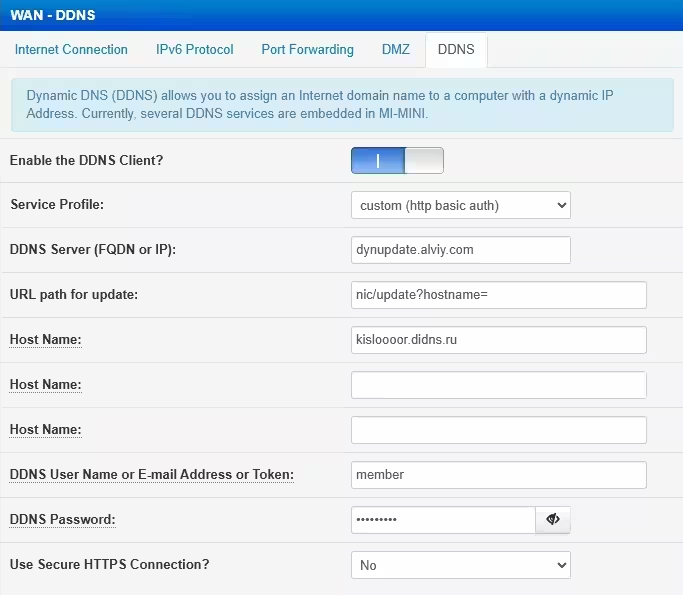
DynDNS parameters
Open the settings of your device (for example, a router), usually it is http://192.168.0.1 and configure according to the description:
- Service profile custom
- DDNS Server dynupdate.alviy.com
- URL path for update nic/update?hostname=
- Host Name your DDNS domain
- User name login (email or unsername).
- Password pass
Or you can send a GET request using the curl/wget utility:
"http://USERNAME:PASSWORD@dynupdate.alviy.com/nic/update?hostname=DOMAIN&myip="
DDNS protocol alternative
Not always the router has all the capabilities for the desired DDNS settings. In this case, there are two options for regularly updating the address:
- Call a GET request to the Secure Update URL, which can be found in the settings of each DynDNS domain at https://cloud.alviy.com/ddns/
- Use client software - DUC (Dynamic Update Client), more details at page